Pimberly
  • Product Tour
    • Platform Features
      • Product Information Management Platform
      • Digital Asset Management
      • Catalog
      • Automated Product Spec & Sell Sheets
      • Auto Sizing Charts
      • Pimberly AI
      • Customer Portal
      • Vendor Portal
      • Workflows
      • eCatalog – Product Previewer
    • Video Tour
      • 1 Minute Demo
      • 3 Minute Demo
      • 25 Minute Demo
    • AI Capabilities
      • Pimbles
      • ColorAI
      • ImageAI
      • CopyAI
    • Integrations
  • Solutions
    • PIM by Industry
      • Manufacturers
      • Distributors
      • Retailers
    • PIM by Sector
      • Fashion & Apparel
      • Multi-Brand Retailers
      • Construction
        • Builders’ Merchants
        • Building Materials Manufacturers
        • Bathroom Businesses
      • Food & Beverage
      • Uniform Distributors
      • Electrical/Mechanical
      • Brands
      • HVAC
      • IT Distributors
      • Homewares
    • PIM by Job Role
      • Senior Management
      • Product Managers
      • eCommerce
      • IT
      • Marketing & Sales
    • Business Benefits
  • What is PIM?
    • What is DAM?
  • Case Studies
  • Pricing
  • Resources
    • Resource Center
      • Whitepapers
      • Blog
      • Press
      • News
      • Pimberly PIM Platform Tour
      • Glossary
    • Events & Webinars
    • Content Hubs
      • I’m researching PIM
      • I’m researching Pimberly
      • I’m researching eCommerce
  • About
    • Careers
    • Partners
      • Our Partners
      • Become a Partner
    • Corporate
      • ESG
    • The Pimberly Story
    • Contact Pimberly
  • Book a Demo
  • Menu

The Product Detail Page

Watch Now

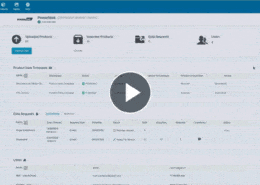
Product data goes wrong when every field is treated the same way. In Pimberly, each attribute is set up once with a name, label, data type and input type, and those settings carry through to every product record. On the product detail page, attributes come together in sets, values are picked from controlled data sets rather than typed by hand, and each field shows exactly how it varies by language and by channel. Source and master settings decide who or what can overwrite a value, so data a person has confirmed isn’t replaced by a feed or an automation.

With Pimberly’s product detail page, you can:

  • Set up each attribute once with a name, label, data type and input type
  • Draw multi-select values from a filtered data set, so users only pick from options that are already correct
  • See every attribute on a product together on one page, grouped into sets
  • Localise a field to hold a value per language, and scope it to hold a different value per channel
  • Facet an attribute to turn it into a filter in the product grid
  • Switch locale or scope to see each version as that market or channel receives it
  • Use source and master settings to protect confirmed values from being overwritten by feeds or automations

See how it works in the video below:

More like this…

Configuring Product Types

The Product Detail Page

Pimberly Dashboards

SupplierData thumb.gif

Importing and Validating Product Data with Vendor Portal

See more videos

WHY PIM?

  • For your business
    • What is a PIM?
    • What is DAM? Guide to Digital Asset Management
    • Business Benefits of PIM
  • For your industry
    • Distributors
    • Manufacturers
    • Retailers
DMCA.com Protection Status

PRODUCT TOUR

  • Product Information Management Platform
  • Digital Asset Management
  • Workflows
  • Pricing
  • Implementation
  • Integrations
    • Technology
    • API Documentation

RESOURCES

  • Resource Center
  • Blog
  • Whitepapers & Guides
  • Events & Webinars
  • Glossary
  • Pimberly PIM Platform Tour
  • News
  • FAQ

GET IN TOUCH

  • Contact Us
  • Book A Demo
  • Our Partners
  • Become a Partner
  • Sitemap
  • Terms and Conditions
  • Privacy Policy
  • Twitter
  • LinkedIn
Black Friday 2026 Guide: How to Prepare in the Age of Agentic Commerce black friday 2026 guide Configuring Product Types
Scroll to top